Make Shaders with AI
Connect your AI tool to Shaderfrog and ask it for a shader. It writes the fragment and vertex GLSL, checks it against Shaderfrog's rules, and saves it to your account. You get a link to open it in the editor, where you can preview it, tweak its sliders and colors, and publish it.

Card Storm“Turn the cube into playing cards that swirl around each other in several circular streams” 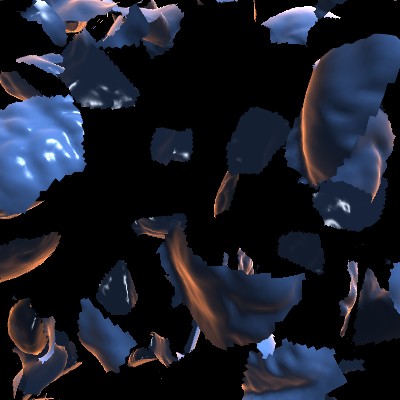
Shatter“Break up the polygons and move them around independently” 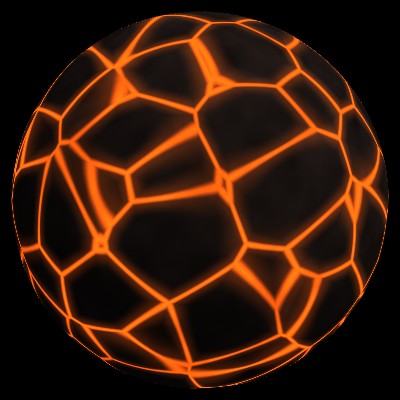
Lava Crust“Cooled rock plates with glowing lava flowing in the cracks” 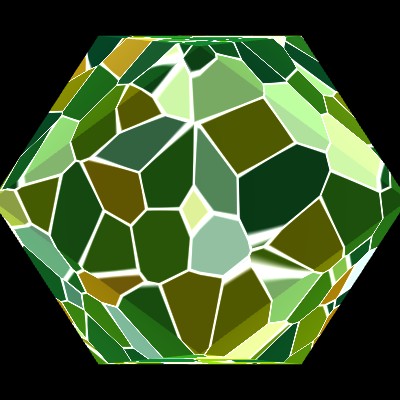
Crystal Cells“Faceted gem cells that each twinkle on their own beat” 
Electric Arcs“Crackling electric arcs crawling over a torus knot” 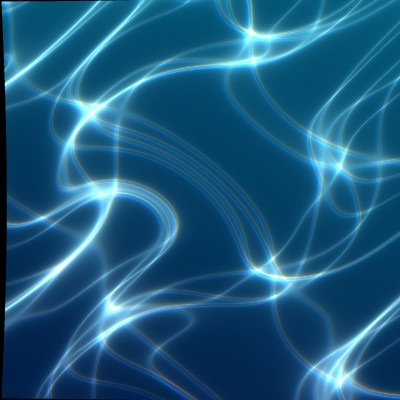
Water Caustics“A pool floor with dancing caustic light and gentle waves”
Set It Up
Shaderfrog has an MCP server, which is how AI tools connect to other services. You need a Shaderfrog Pro account and an API token.
Get Shaderfrog Pro
Creating shaders with AI is a Pro feature.
Create an API token
Go to API tokens and create one. The setup commands there have your token filled in. Treat it like a password.
Connect your AI tool
Replace
sf_your_tokenwith your token.Claude Codeclaude mcp add --transport http shaderfrog https://shaderfrog.com/api/mcp \ --header "Authorization: Bearer sf_your_token"
Cursor (~/.cursor/mcp.json) and other tools that usemcpServers{ "mcpServers": { "shaderfrog": { "url": "https://shaderfrog.com/api/mcp", "headers": { "Authorization": "Bearer sf_your_token" } } } }VS Code (.vscode/mcp.json){ "servers": { "shaderfrog": { "type": "http", "url": "https://shaderfrog.com/api/mcp", "headers": { "Authorization": "Bearer sf_your_token" } } } }One-click connecting from claude.ai, Claude Desktop, and ChatGPT is coming. Those apps need a sign-in flow instead of a token.
Ask for a shader
Start a new chat and describe what you want. Mentioning Shaderfrog helps the AI pick the right tools.
- Make a Shaderfrog shader of a glowing jellyfish
- Make a Shaderfrog shader that melts the model like wax, on the bunny
- Make 5 Shaderfrog shaders inspired by 80s sci-fi movie posters
- Change my Shaderfrog shader [link] so the colors cycle faster
What the AI Can Do
- get_glsl_guide
- Read Shaderfrog's rules and examples for GLSL
- validate_shader
- Check a shader for problems before saving it
- create_shader
- Save a new shader to your account as a private draft
- update_shader
- Change the code, sliders, or name of your shader
- get_shader
- Read one of your shaders, or any public shader
- search_shaders
- Search public shaders for ideas and examples
Using a Chatbot Without MCP
Any AI can write Shaderfrog shaders if it knows the rules. Give it the Shaderfrog GLSL guide, either the link or the text, and ask for a fragment and vertex shader. Then open the editor, right-click the graph, choose Source Code → Fragment and Vertex, paste the code into the new nodes, and connect them to the outputs.
Good to Know
- New shaders are private drafts. Open the link and save the shader in the editor to give it a thumbnail and make it public.
- You can create up to 50 shaders a day.
- The AI can only update shaders that are still a single fragment and vertex shader. Once you build them into a bigger graph in the editor, change them there.
- Developers can also use the REST API at
https://shaderfrog.com/api/v1with the same token.